Practice
Sau khi xem Plan, người chơi chuẩn bị cho Practice
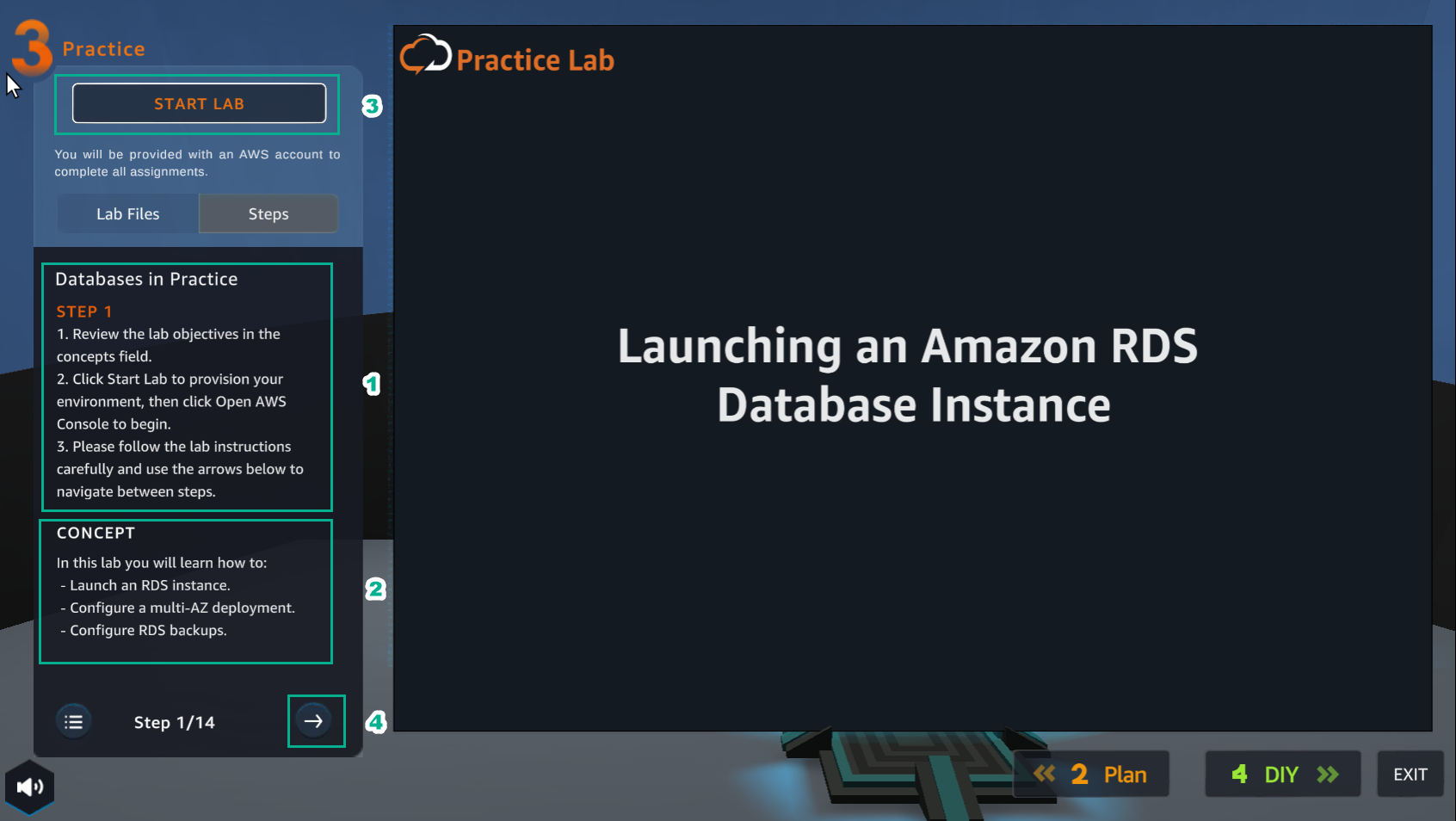
- Trong giao diện Practice
- Đọc bước 1 của Database in Practice
- Đọc CONCEPT
- Chọn START LAB
- Chọn mũi tên sang phải để xem các bước tiếp theo
- Trong giao diện Learn
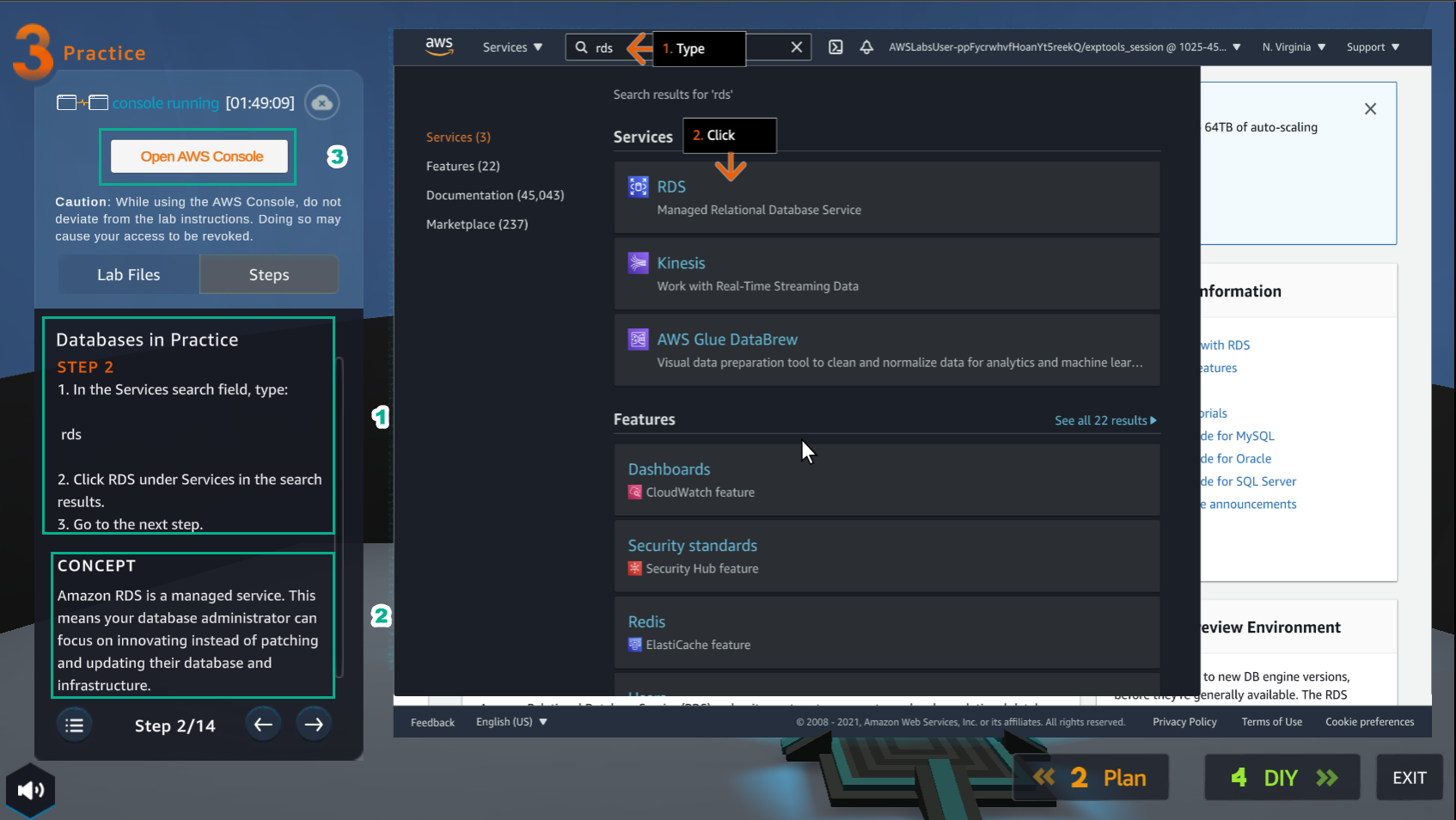
- Đọc bước 2 của Database in Practice
- Đọc CONCEPT
- Chọn Open AWS Console
- Trong giao diện AWS Console
- Tìm RDS
- Chọn RDS
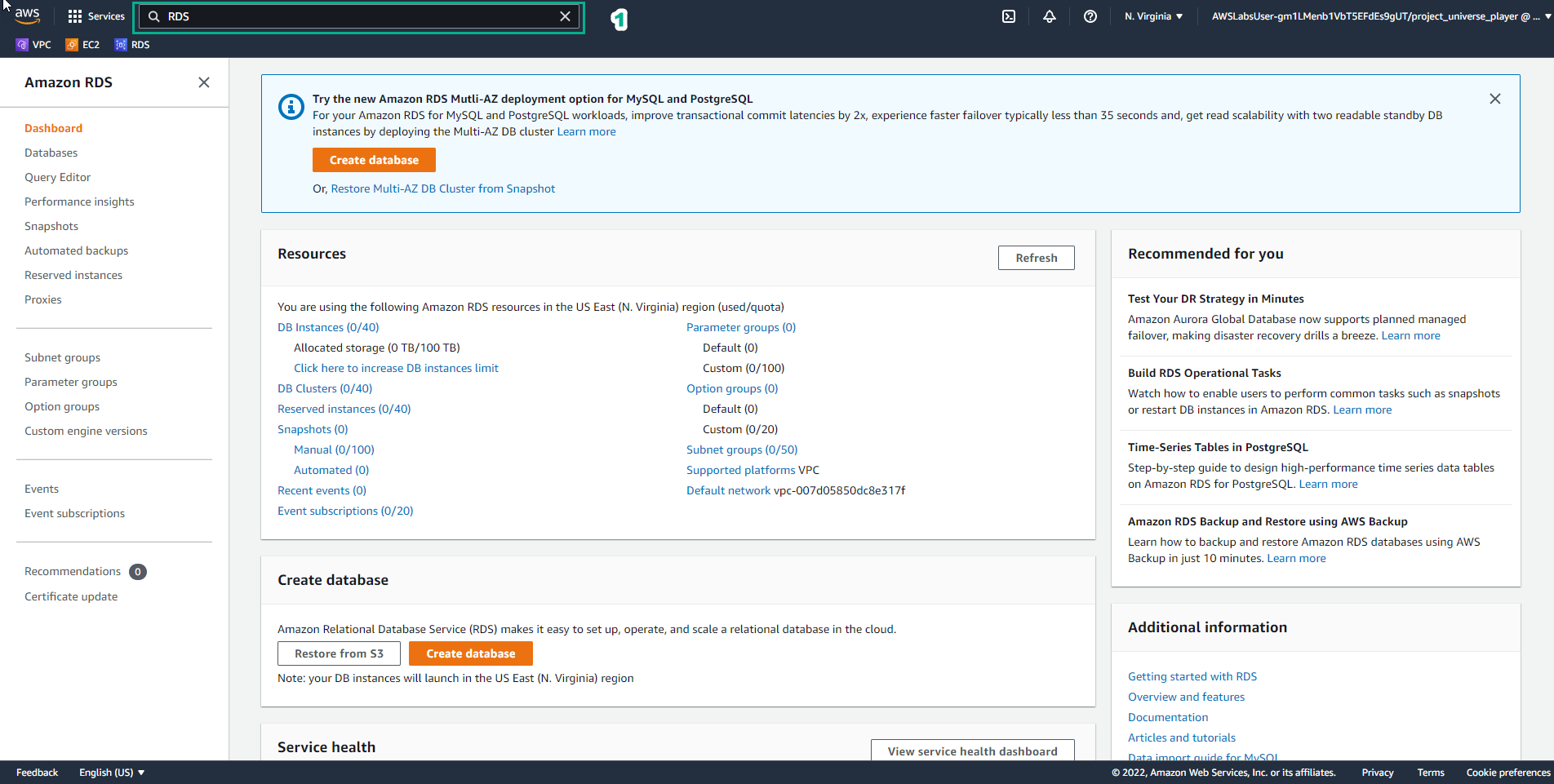
- Trong giao diện Practice*
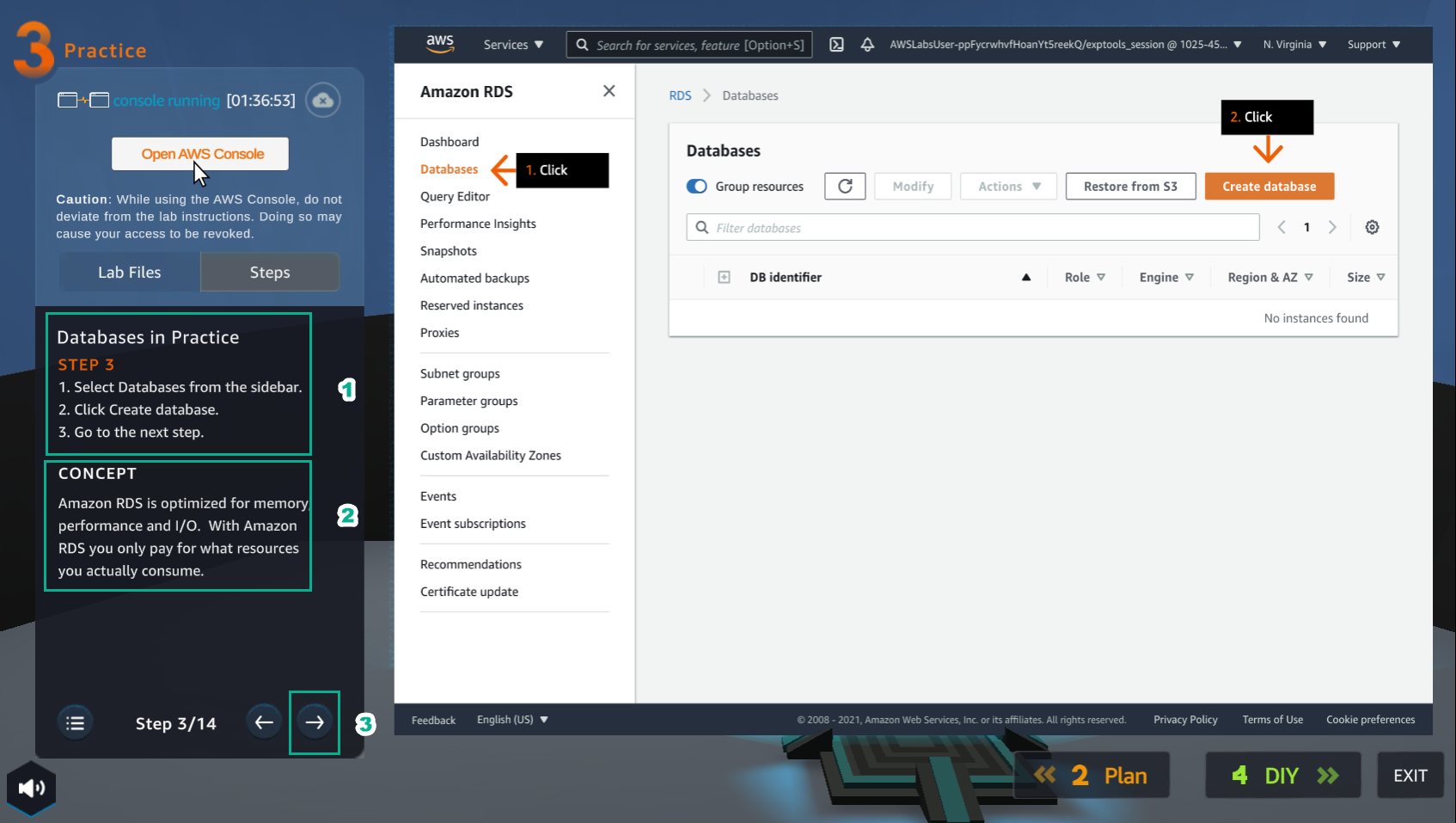
- Đọc bước 3 của Database in Practice
- Chọn CONCEPT
- Chọn mũi tên sang phải để xem các bước tiếp theo
- Trong giao diện Practice
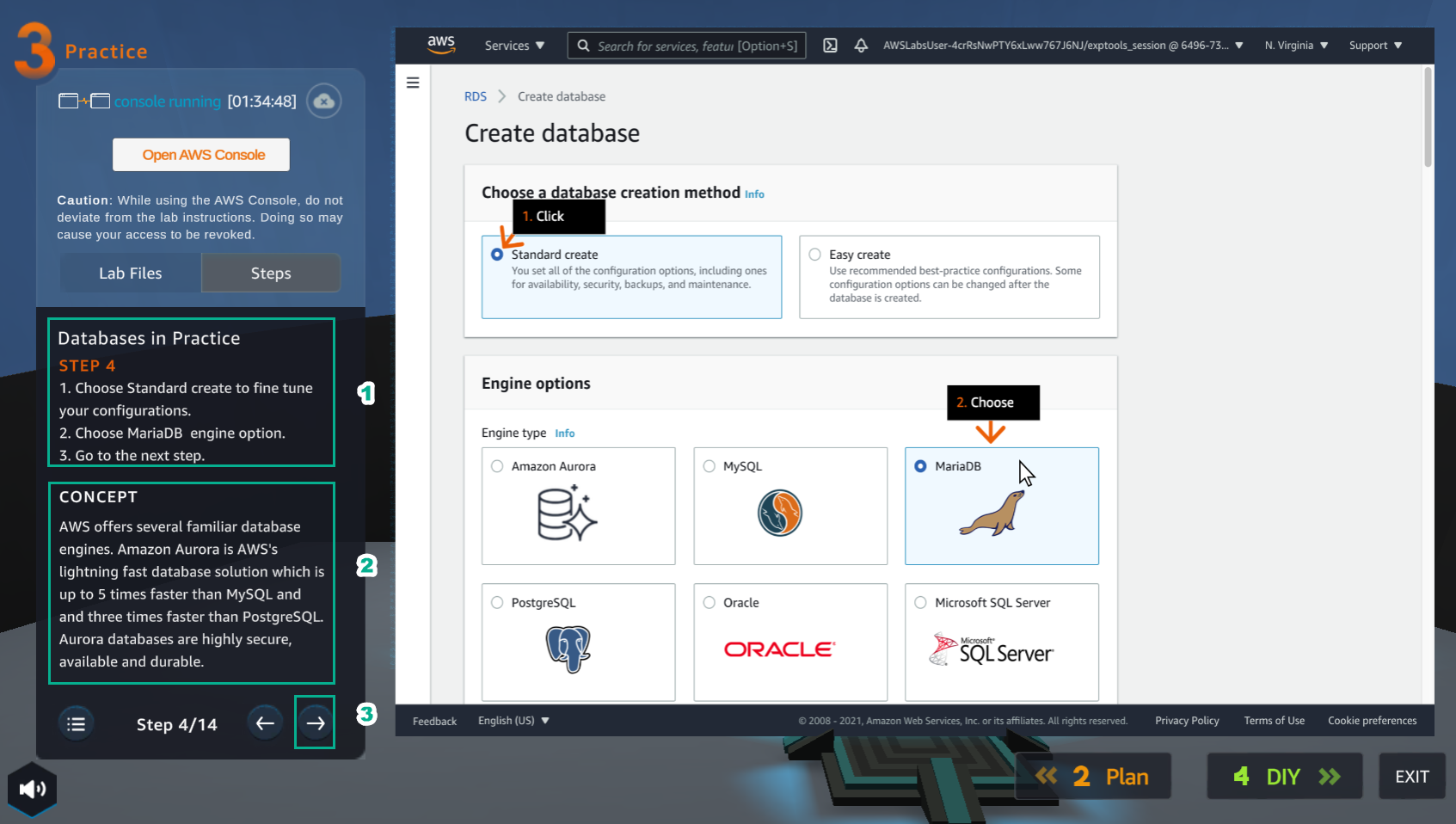
- Đọc bước 4 của Database in Practice
- Đọc CONCEPT
- Chọn mũi tên sang phải để xem các bước tiếp theo
- Trong giao diện RDS
- Chọn Databases
- Chọn Create database
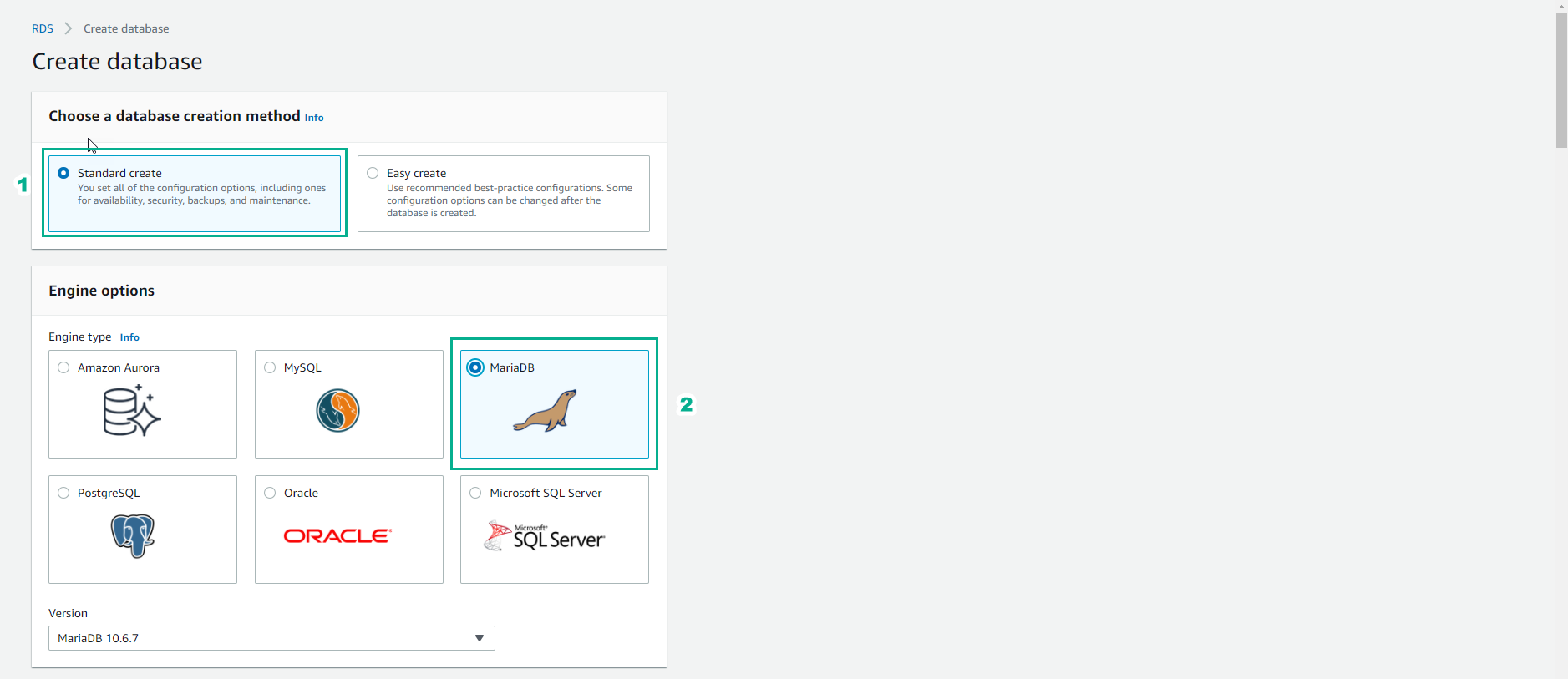
- Trong Choose a database creation method, chọn Standard create
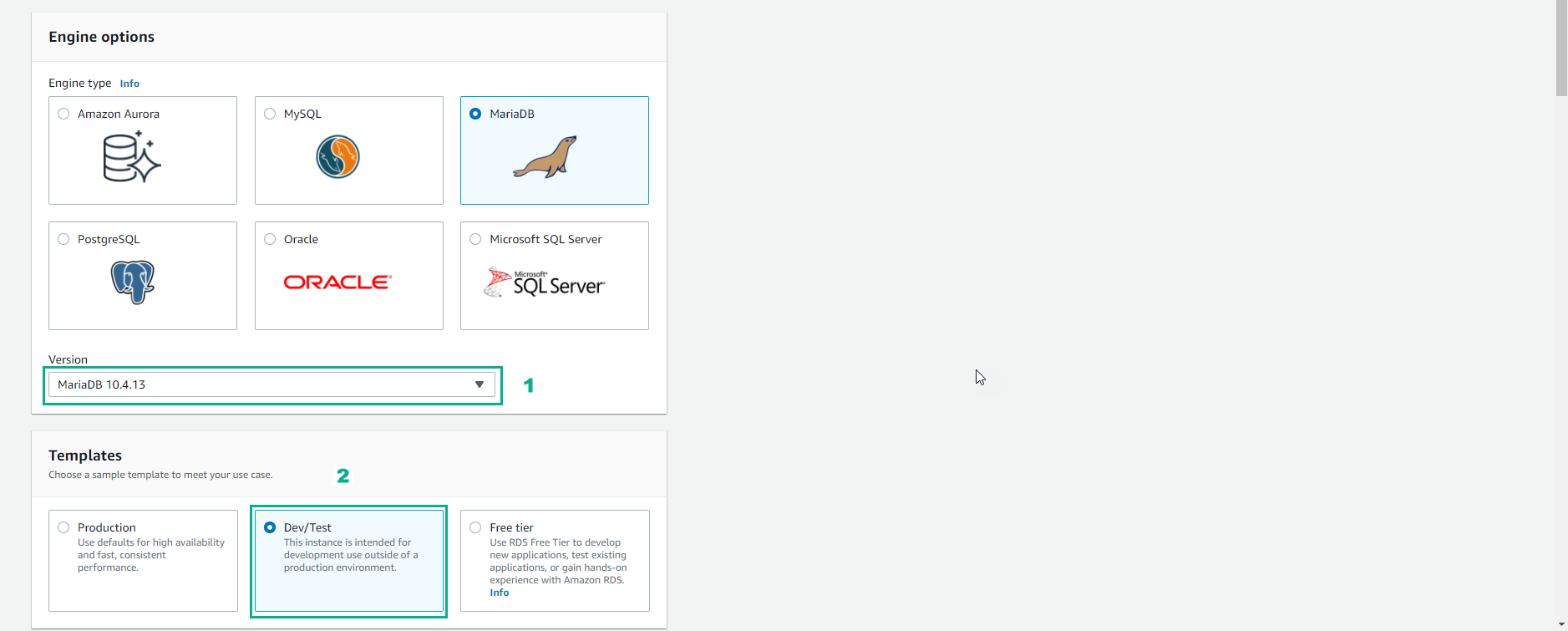
- Trong Engine options, chọn MariaDB
- Trong giao diện Practice
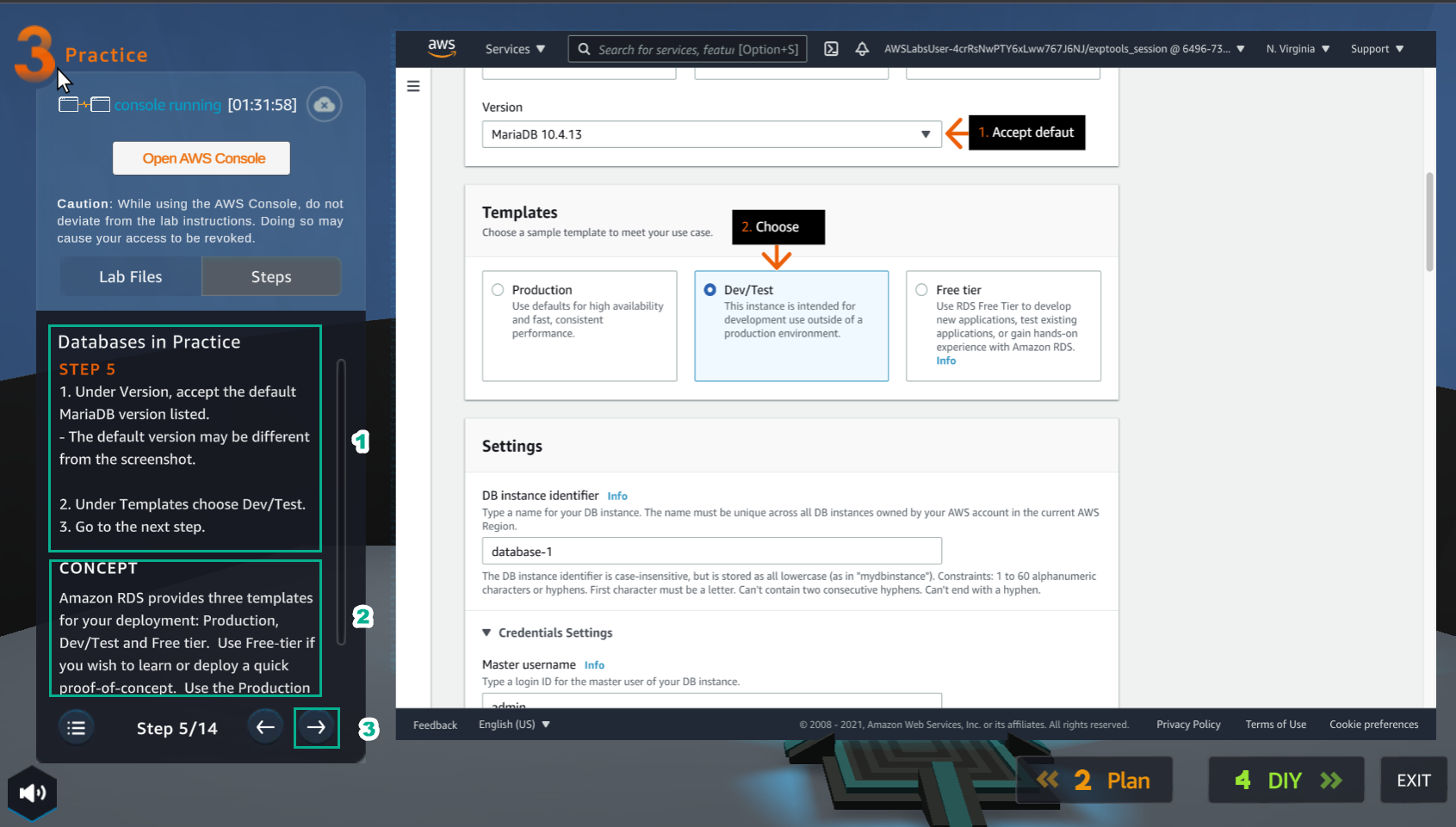
- Đọc bước 5 của Database in Practice
- Đọc CONCEPT
- Chọn mũi tên sang phải để xem các bước tiếp theo
- Trong giao diện RDS
- Version, chọn MariaDB 10.4.13
- Templates, chọn Dev/Test
- Trong giao diện Practice
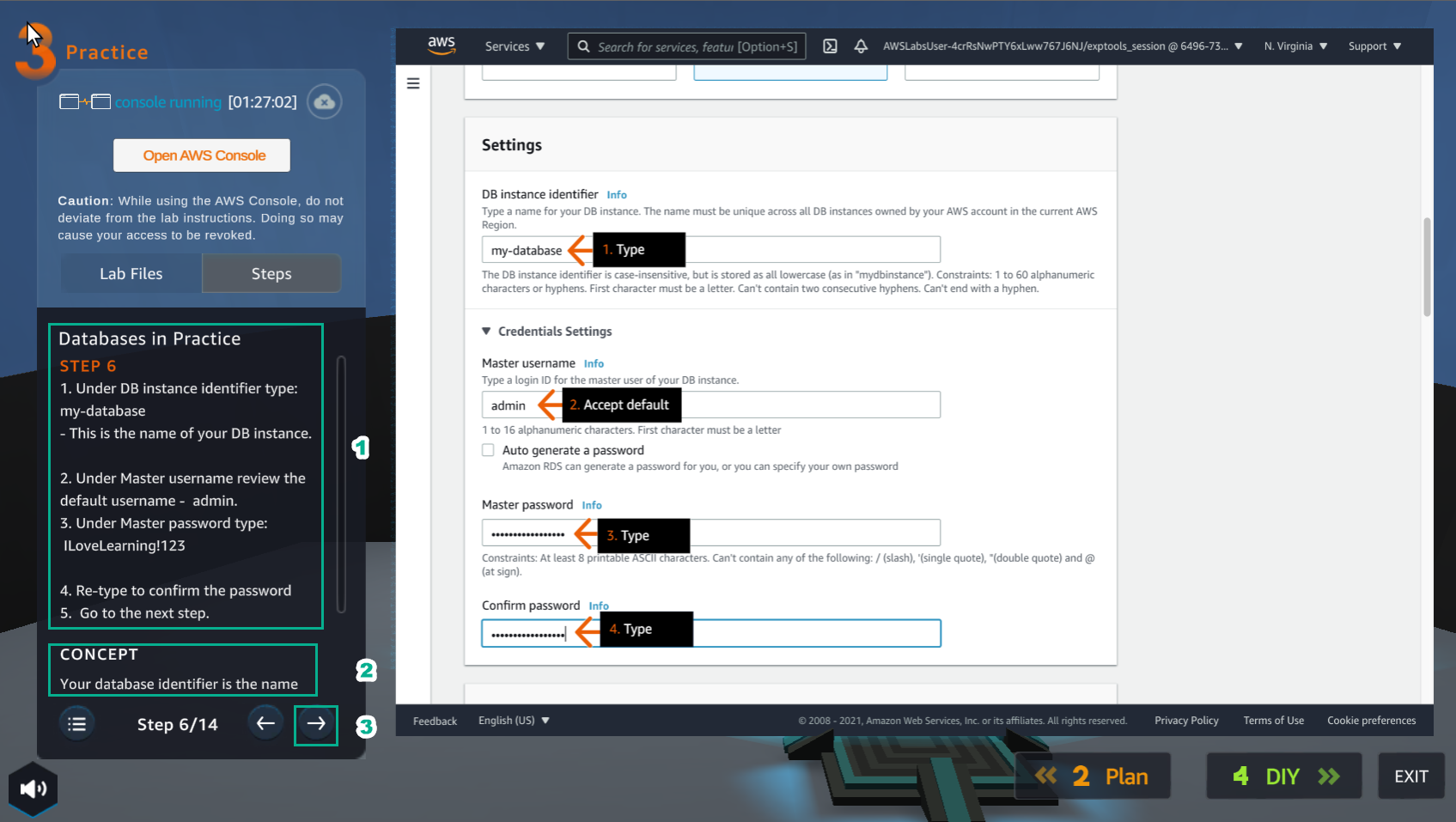
- Đọc bước 6 của Databases in Practice
- Đọc CONCEPT
- Chọn mũi tên sang phải để xem các bước tiếp theo
- Trong giao diện RDS
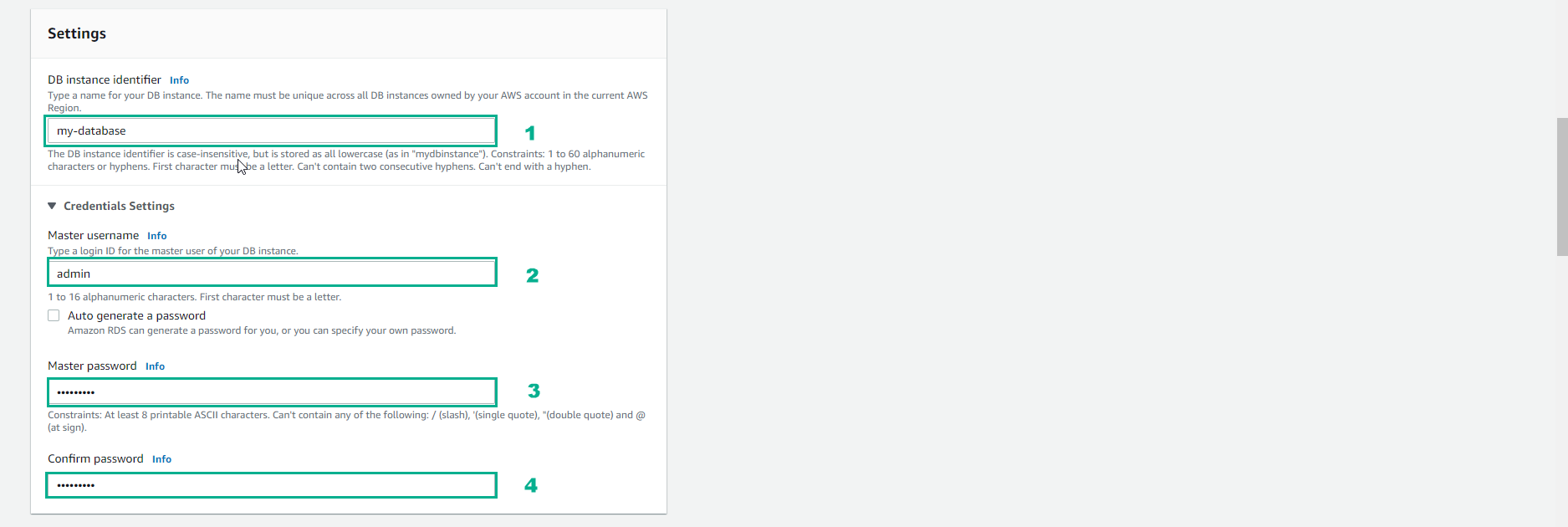
- DB instance identifier, nhập
my-database - Master username, nhập
admin - Master password, nhập
123456789admin - Confirm password, nhập
123456789admin
- Trong giao diện Practice
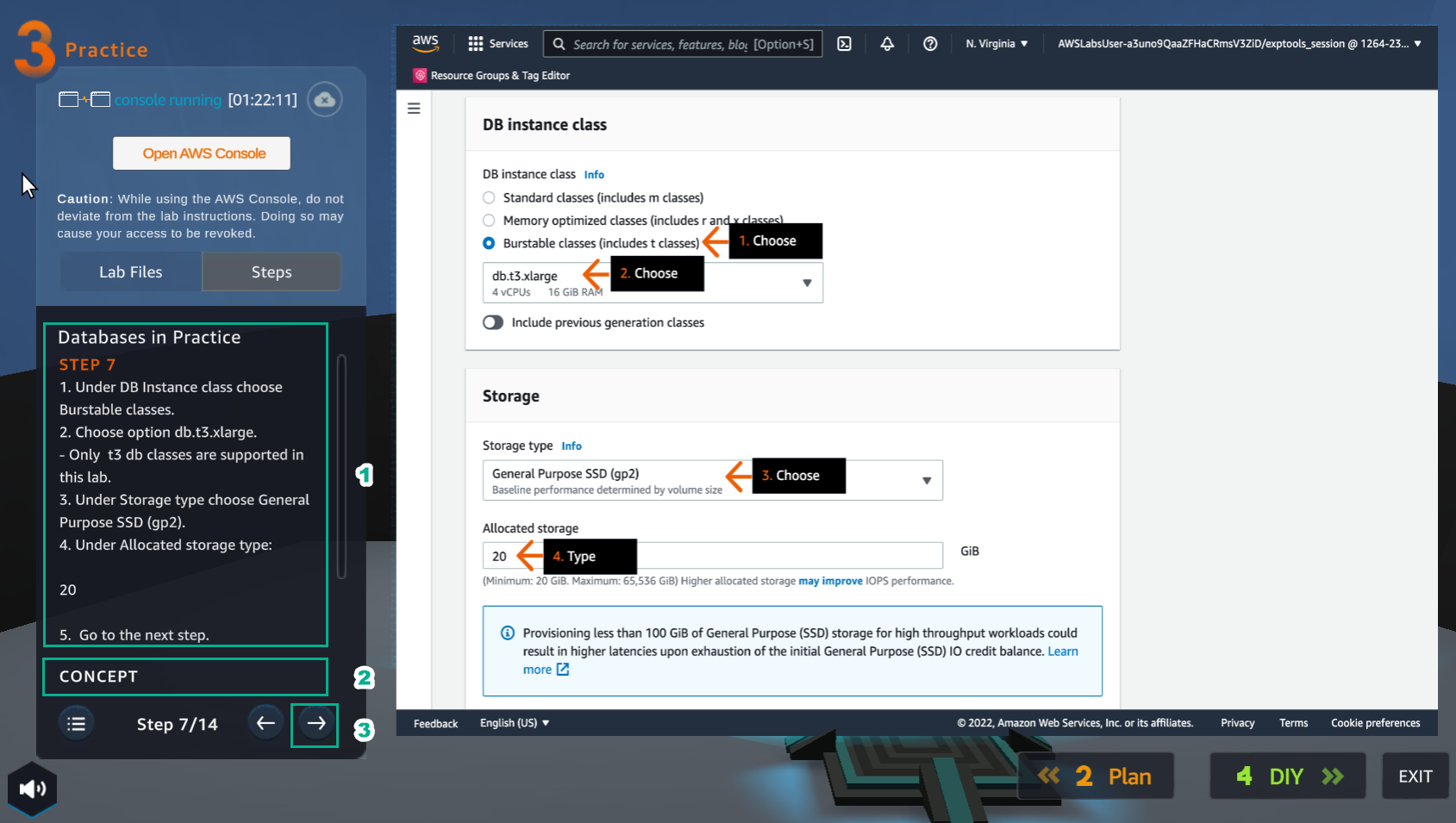
- Đọc bước 7 của Databases in Practice
- Đọc CONCEPT
- Chọn mũi tên sang phải để xem các bước tiếp theo
- Trong giao diện RDS
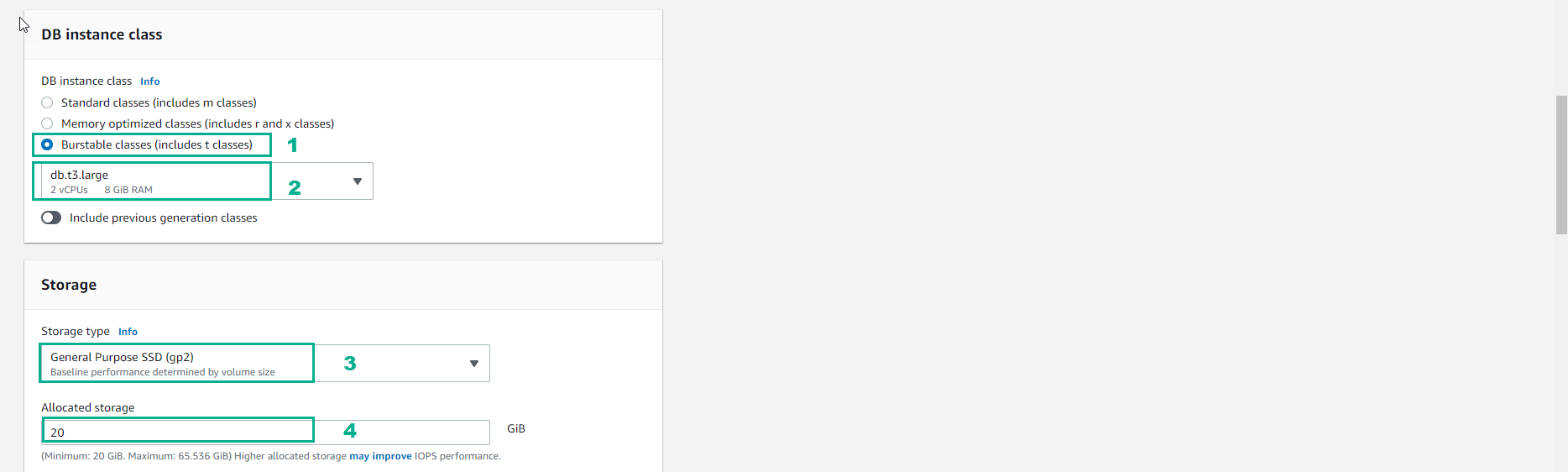
- Trong DB instance class, chọn Burstable classes (includes t classes)
- Chọn db.t3.large
- Trong Storage type, chọn General Purpose SSD (gp2)
- Trong Allocated storage, nhập
20
- Trong giao diện Practice
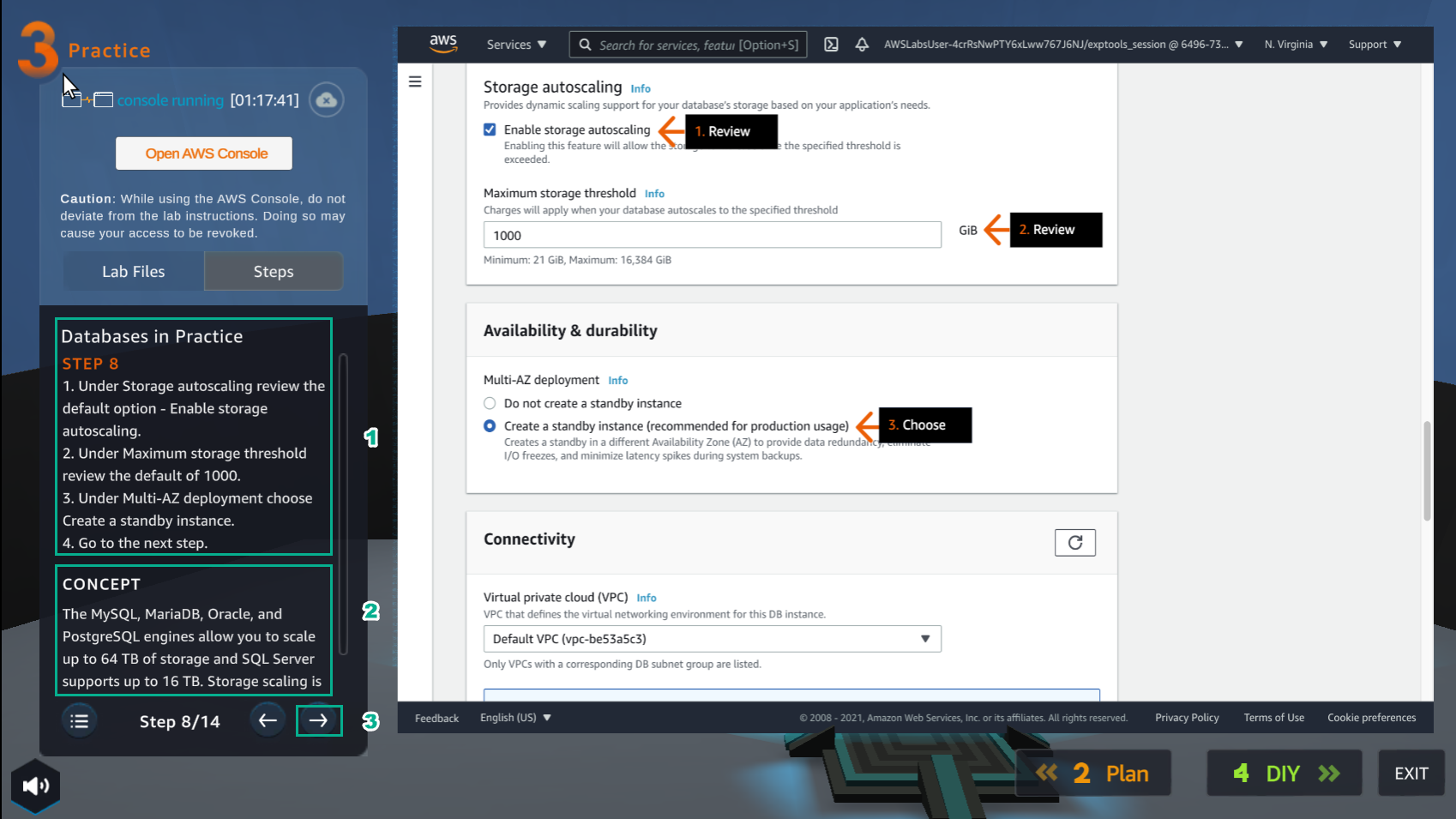
- Đọc bước 8 của Databases in Practice
- Chọn CONCEPT
- Chọn mũi tên sang phải để xem các bước tiếp theo
- Trong giao diện RDS
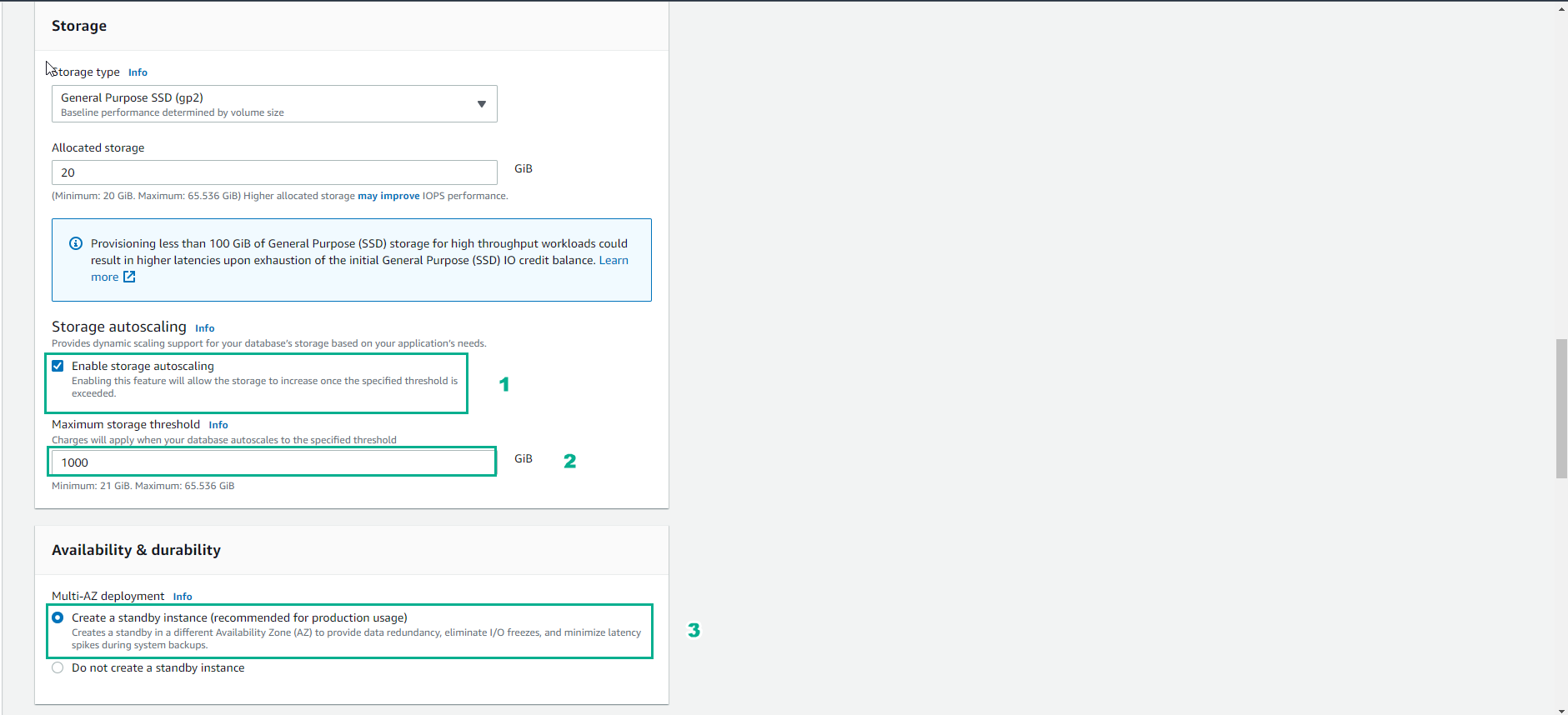
- Trong Storage autoscaling, chọn Enable storage autoscaling
- Trong Maximum storage threshold, nhập
1000 - Trong Multi-AZ deployment, chọn Create a standby instance (recommended production usage)
- Trong giao diện Practice
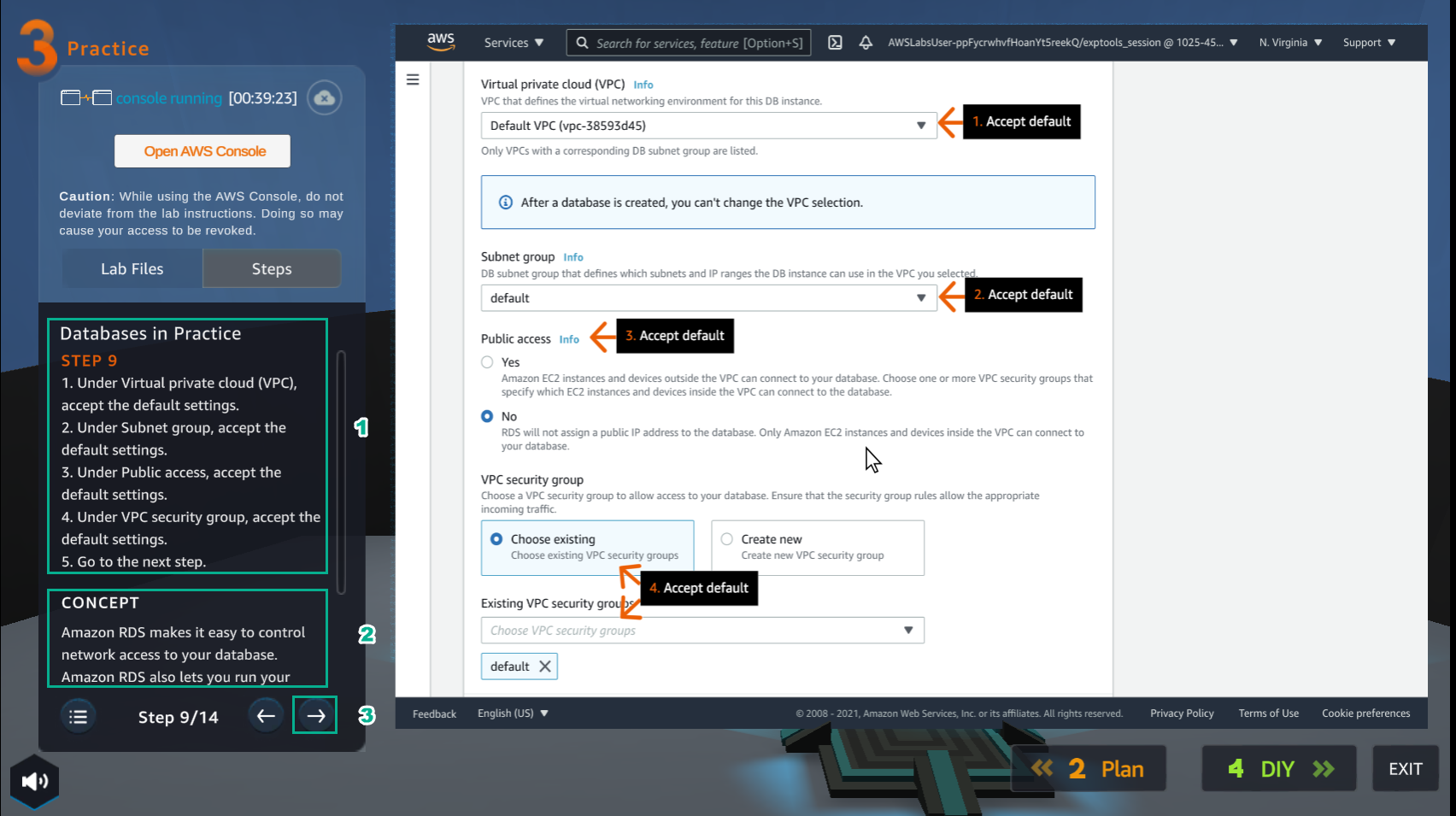
- Đọc bước 9 của Databases in Practice
- Đọc CONCEPT
- Chọn mũi tên sang phải để xem các bước tiếp theo
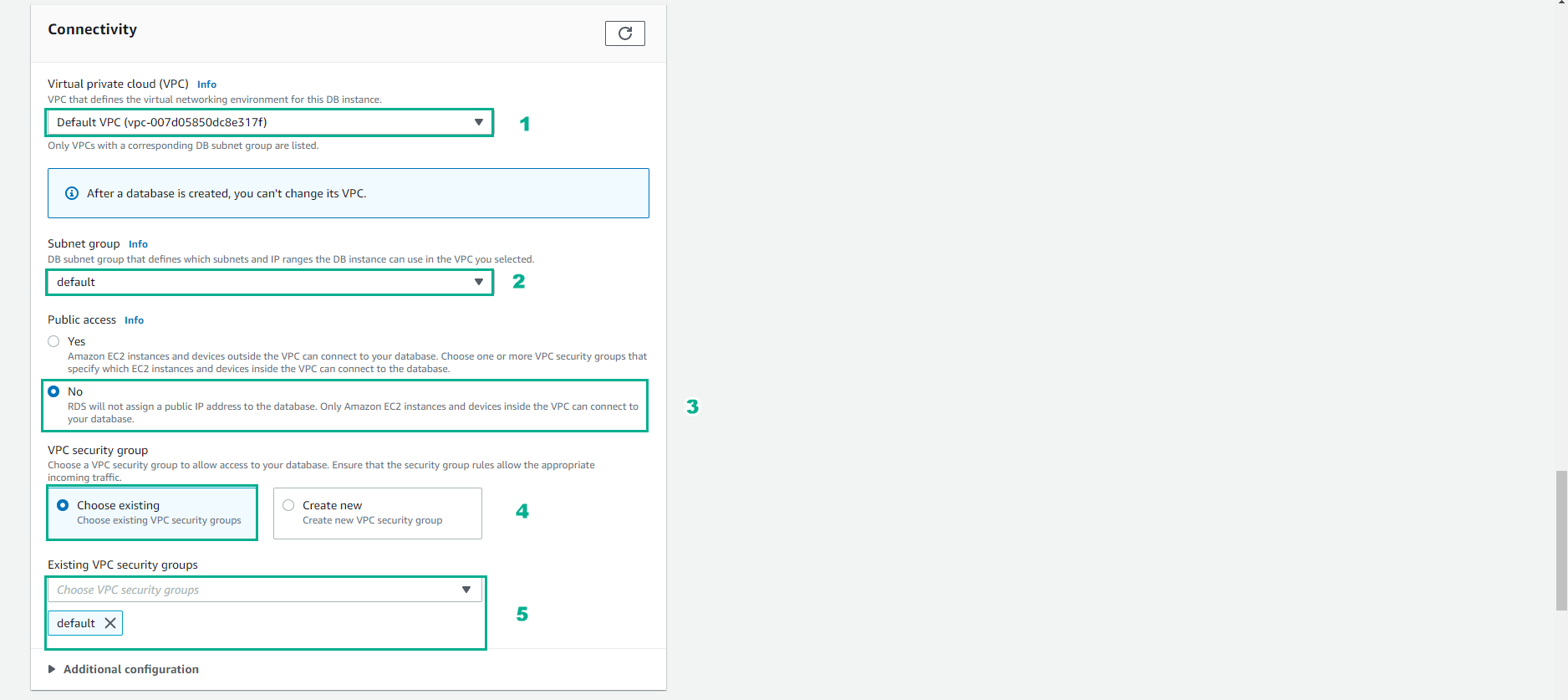
- Trong giao diện Connectivity
- Chọn VPC mặc định
- Chọn Subnet group mặc định
- Trong Public access, chọn No
- Trong VPC security group, chọn Choose existing
- Trong Existing VPC security groups, chọn default
- Trong giao diện Practice
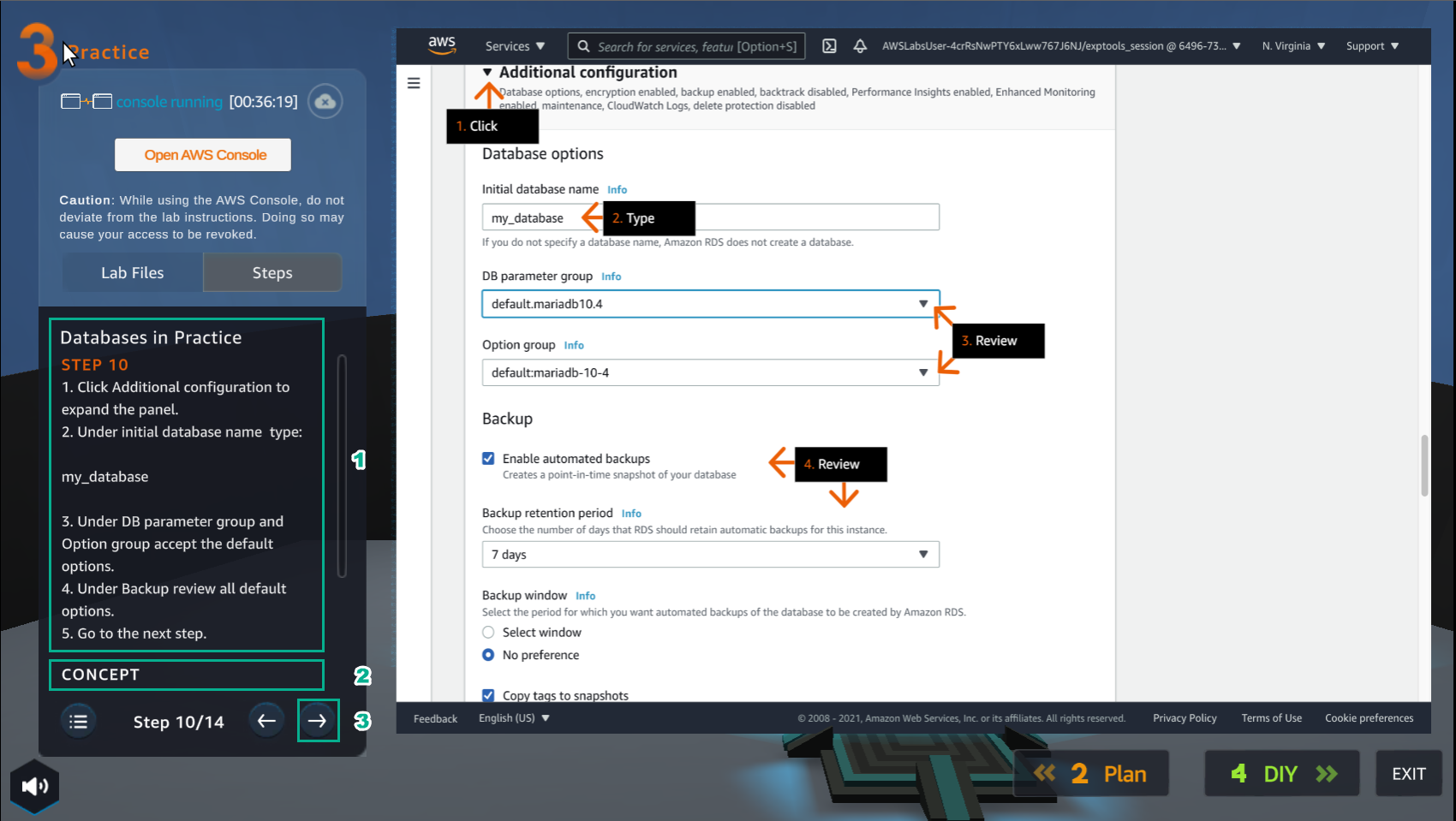
- Đọc bước 10 của Databases in Practice
- Đọc CONCEPT
- Chọn mũi tên sang phải để xem các bước tiếp theo
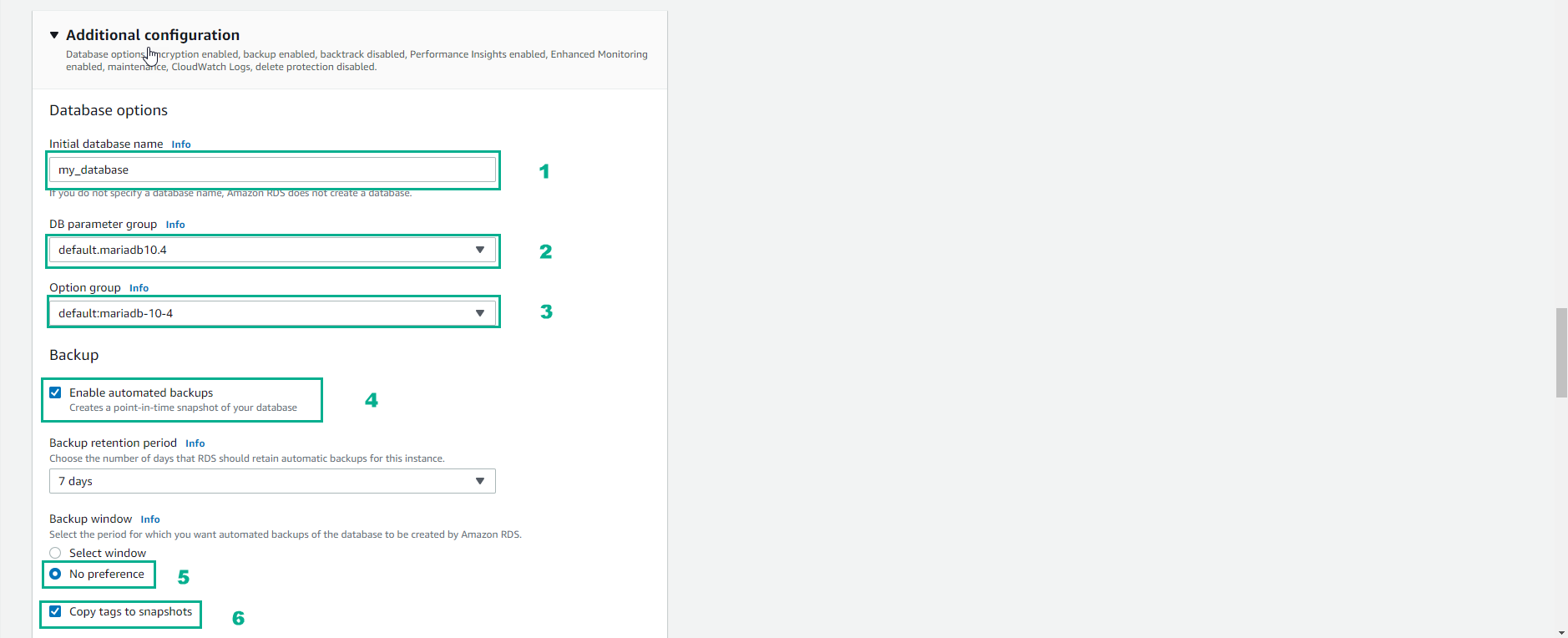
- Trong giao diện Additional configuration
- Trong Initial database name, nhập
my_database - Trong DB parameter group, chọn default:mariadb-10-4
- Trong Option group, chọn default:mariadb-10-4
- Trong Backup, chọn Enable automated backups
- Trong Backup window, chọn No preference
- Chọn Copy tags to snapshots
- Trong giao diện Practice
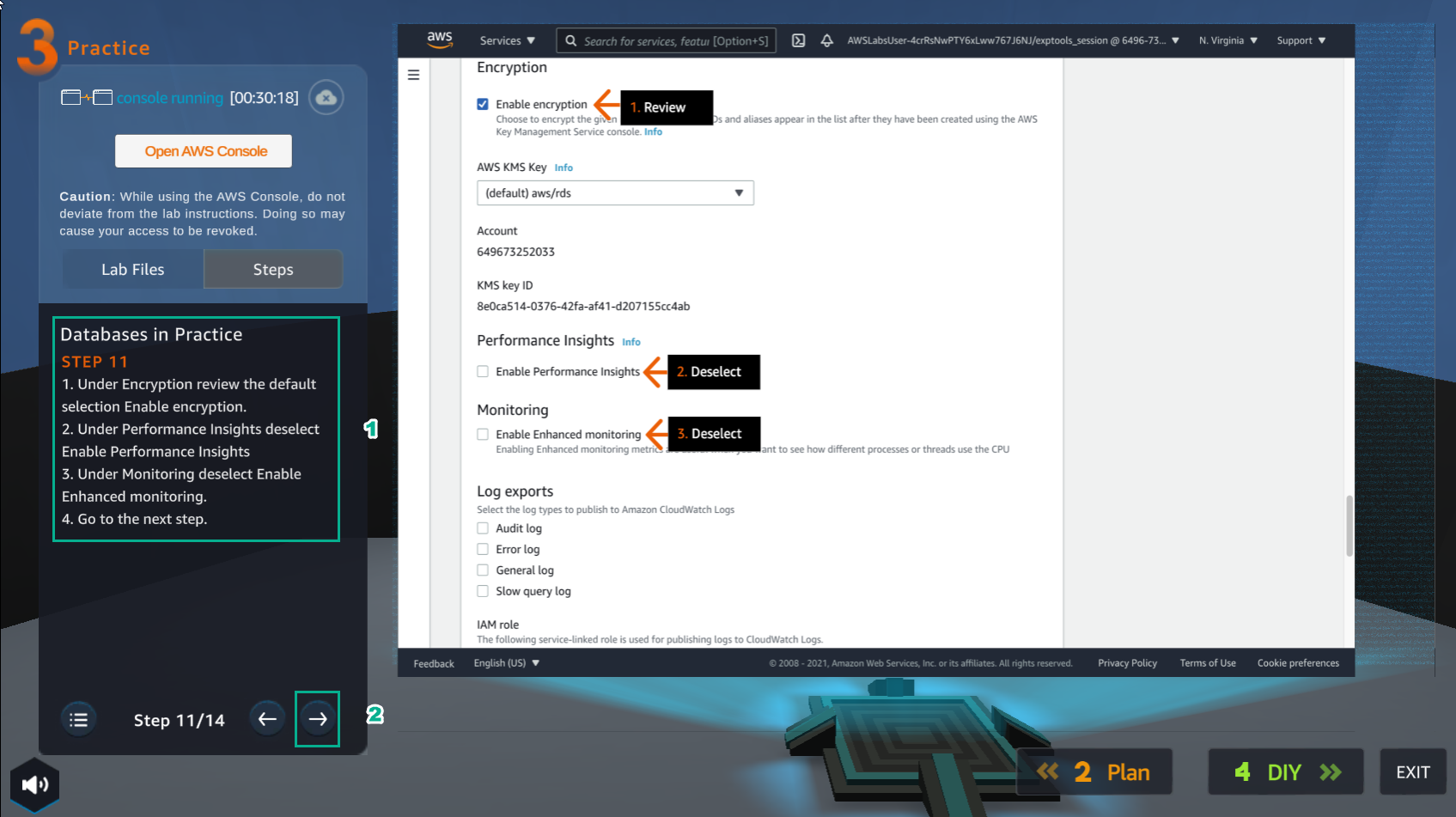
- Đọc bước 11 của Databases in Practice
- Chọn mũi tên sang phải để xem các bước tiếp theo
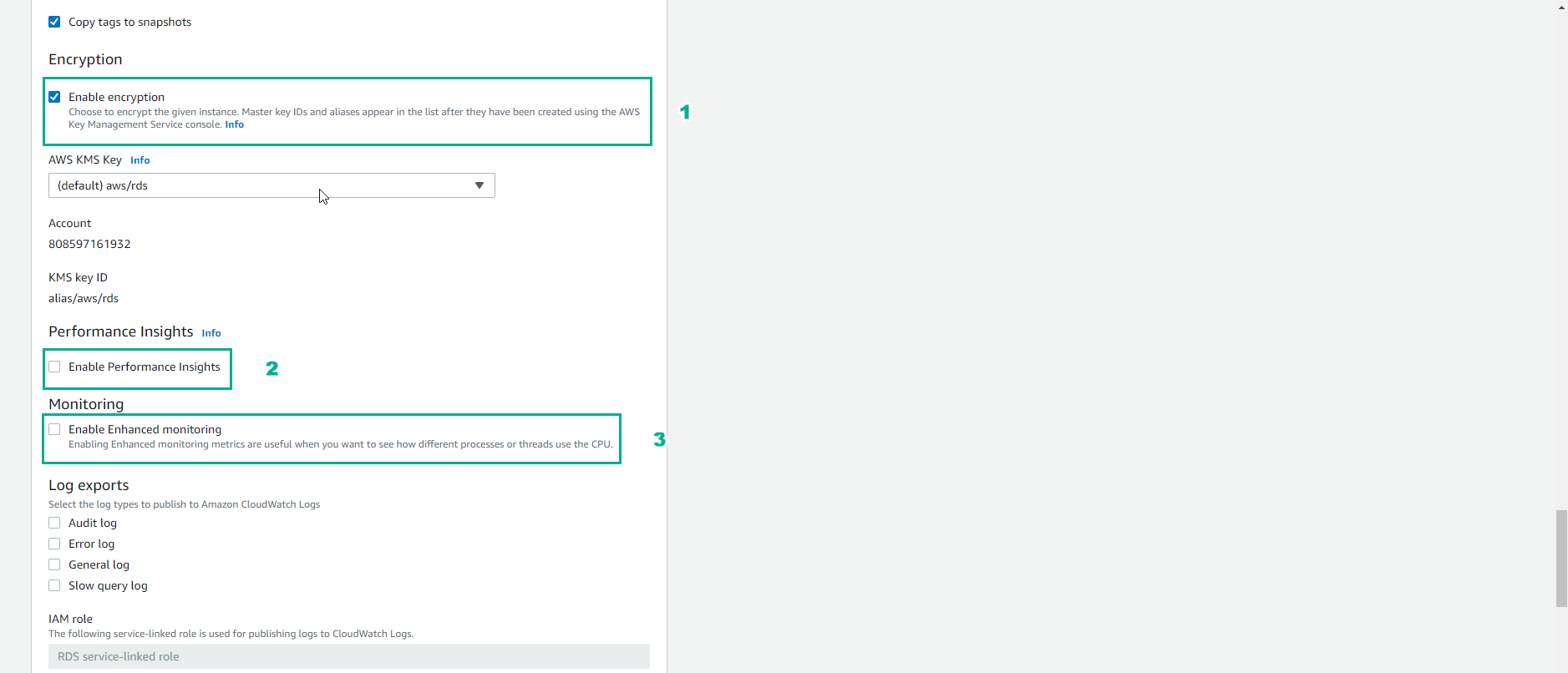
- Trong giao diện RDS
- Trong Encrytion, chọn Enable encrytion
- Trong Performance Insights, bỏ chọn Enable Performance Insights
- Trong Monitoring, bỏ chọn Enable Enhanced monitoring
- Trong giao diện Practice
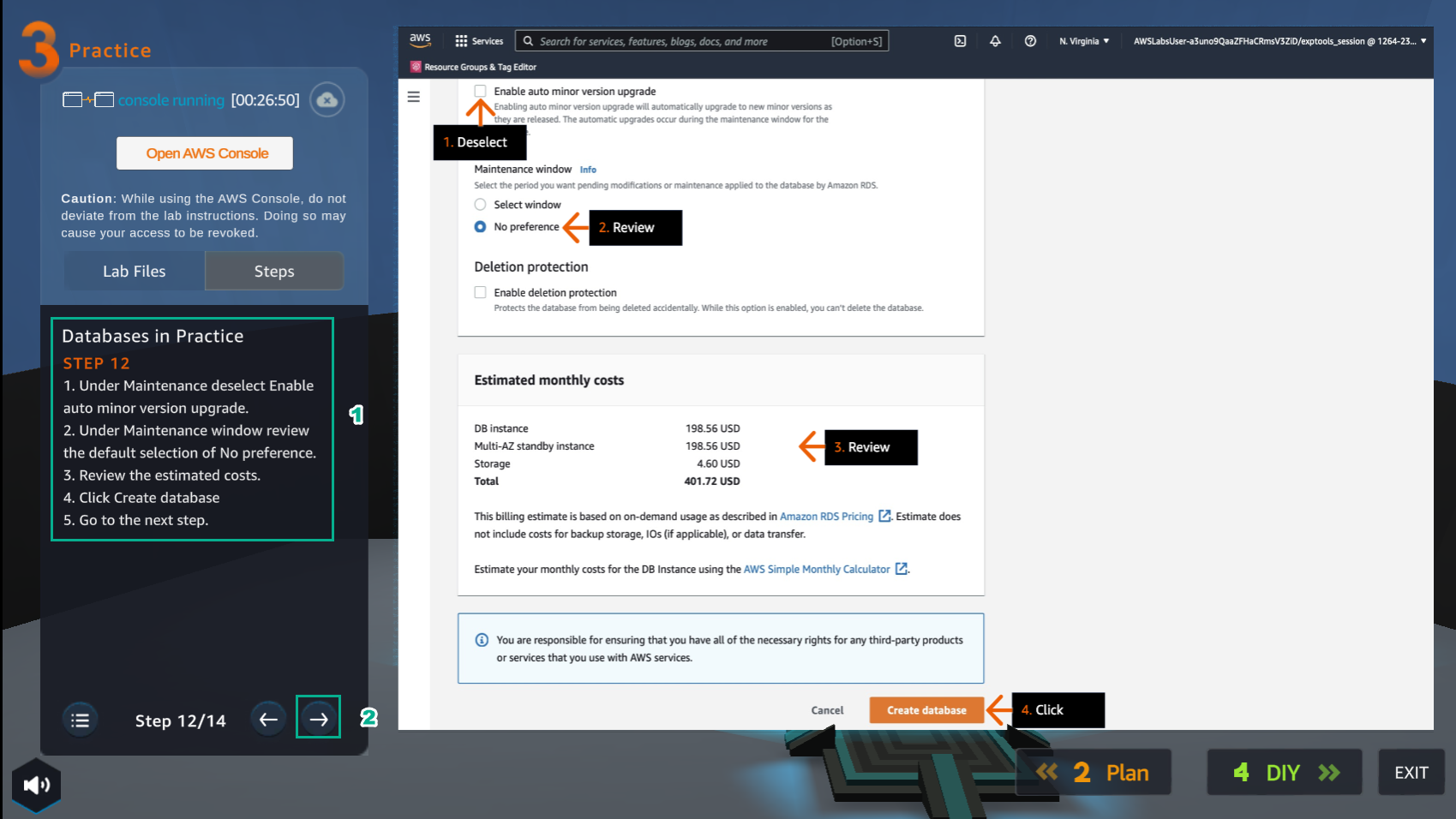
- Trong bước 12 của Databases in Practice
- Chọn mũi tên sang phải để xem các bước tiếp theo
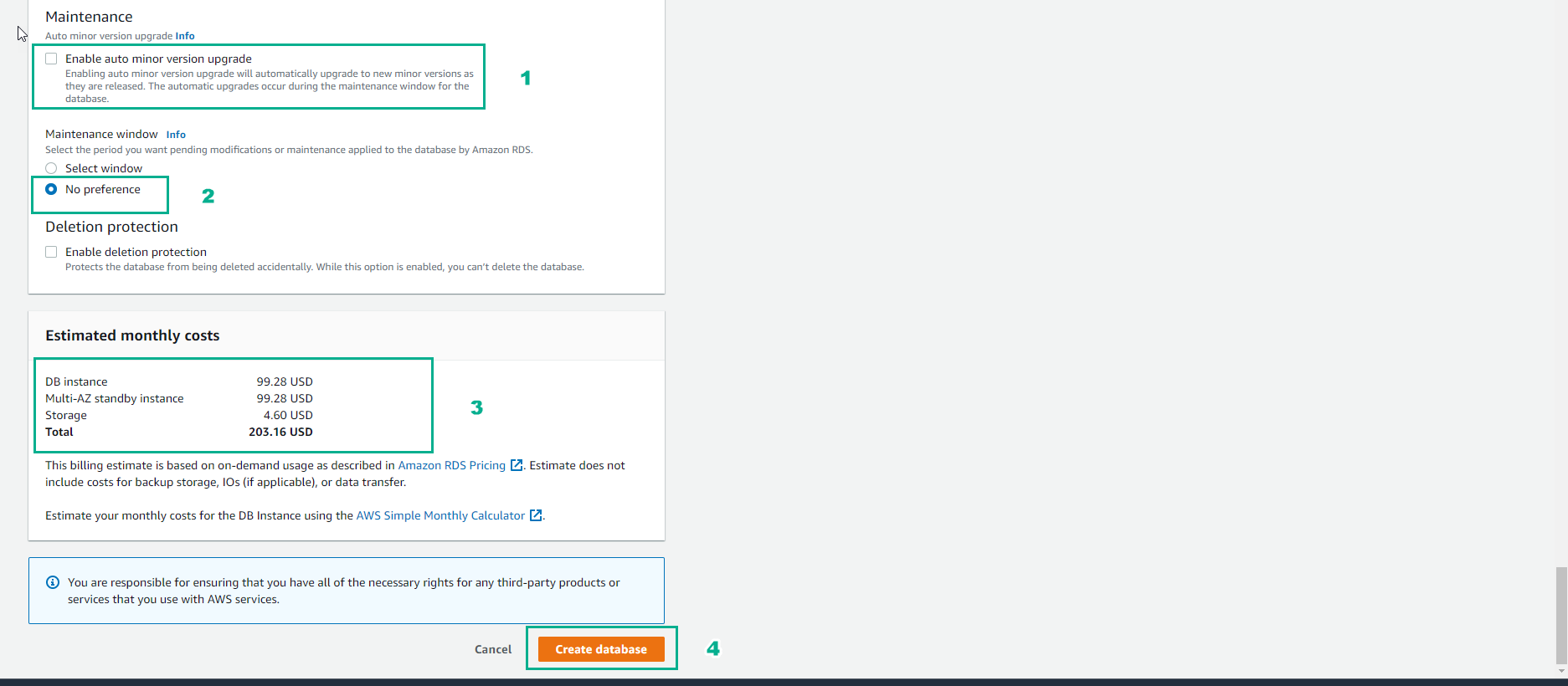
- Trong giao diện Create database
- Trong Maintenance, bỏ chọn Enable auto minor version upgrade
- Trong Maintenance window, chọn No preference
- Xem Estimated monthly costs
- Chọn Create database
- Trong giao diện Practice
- Đọc bước 13 của Databases in Practice
- Chọn mũi tên sang phải để xem các bước tiếp theo
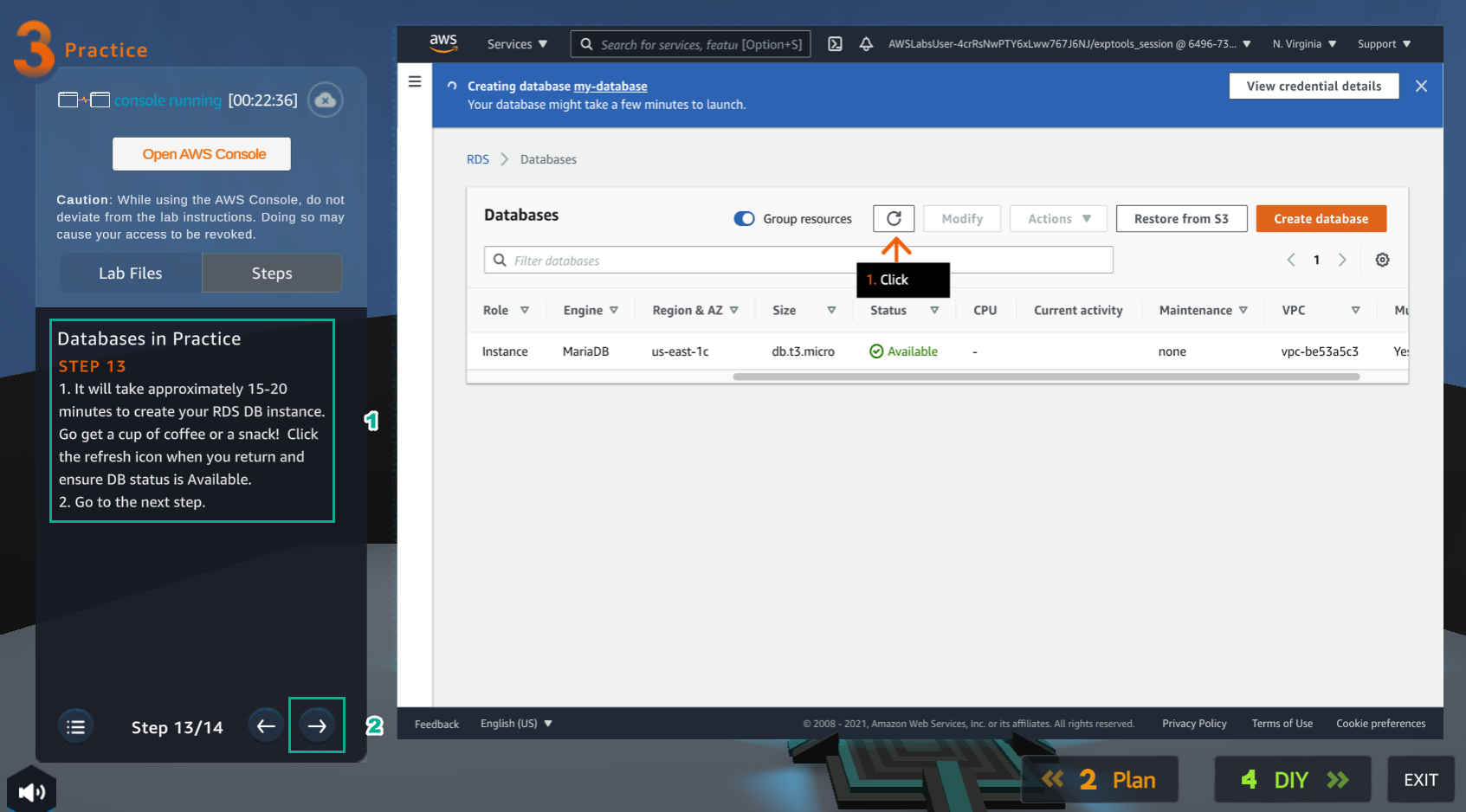
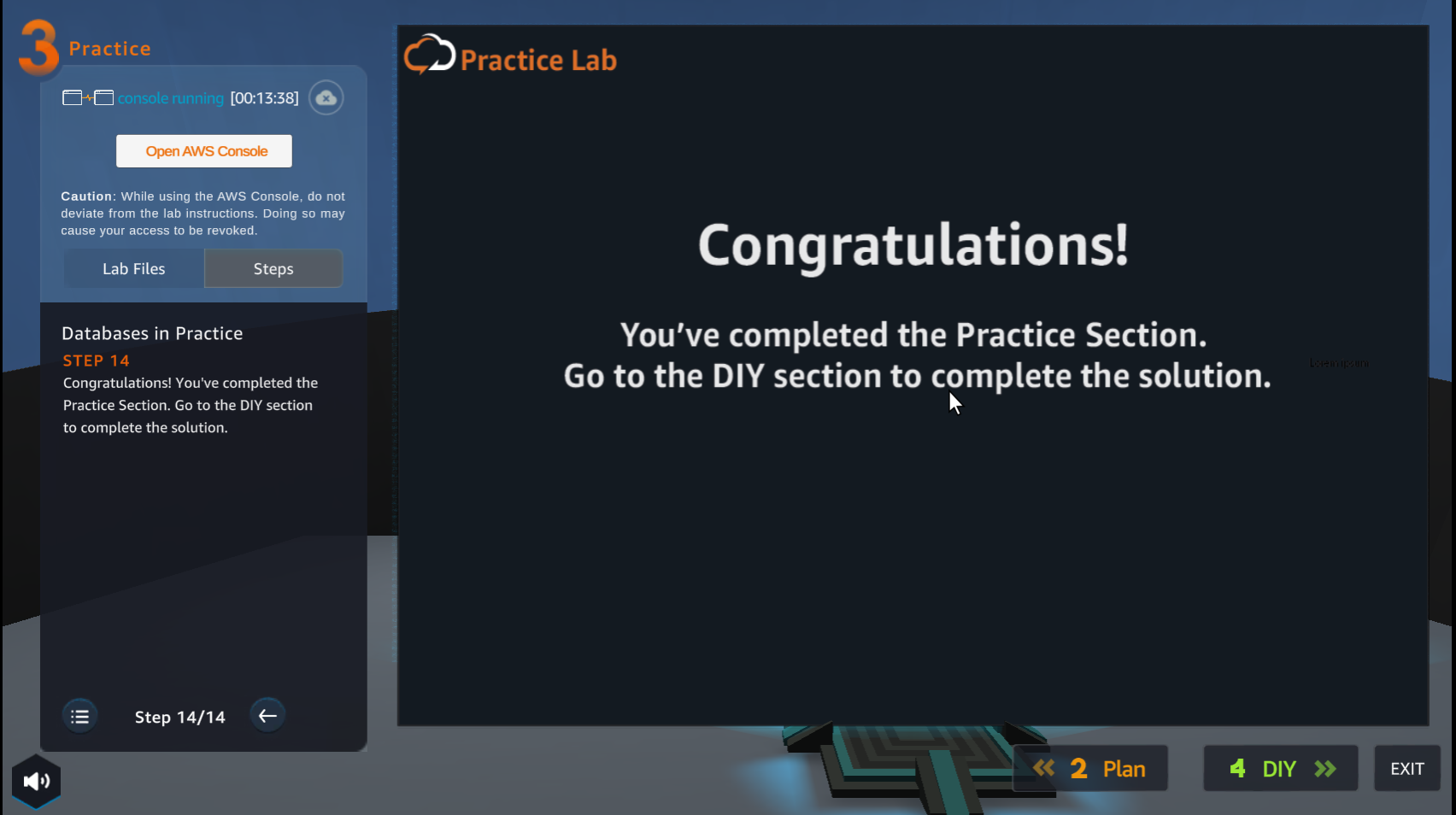
- Chúc mừng người chơi đã hoàn thành bài lab
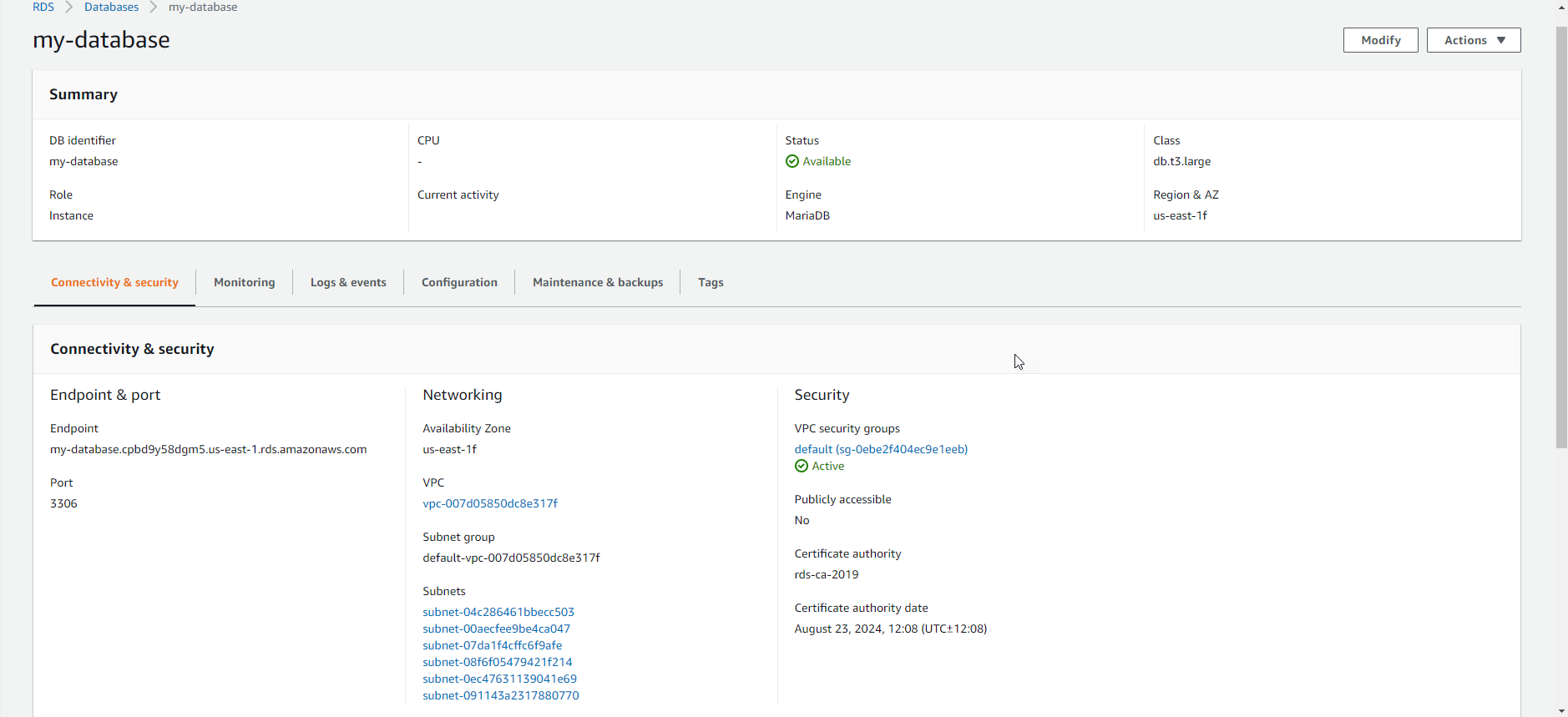
- Xem lại my-database vừa tạo